
How to Manage Inventory with Custy?
Custy inventory is for custom products. You can track stock, set a stop-sell threshold, and manage every size, color, and style combination from the product customizer.
Assign sizes and colors on the product first. The Inventory table builds one row for each style, color, and size combination. Changing inventory does not delete your Shopify products.
Who can use Inventory?
Inventory control needs Starter or Pro. On Free, the Inventory tab stays locked and you see a banner: Inventory control requires the Starter plan or higher.
Step 1: Open the customizable product
In Custy, click Products on the left. Find the product and click Edit. If it is still a standard Shopify product, click Make it customizable first.
- Open Products.
- Click Edit on the product you want to stock.
Step 2: Open the Inventory tab
On Customize Product, scroll to Restrictions & Settings. Click Inventory.
All variations
The blue badge (All variations - …) counts every size, color, and style combination for this product. That count grows when you add sizes, colors, or styles.
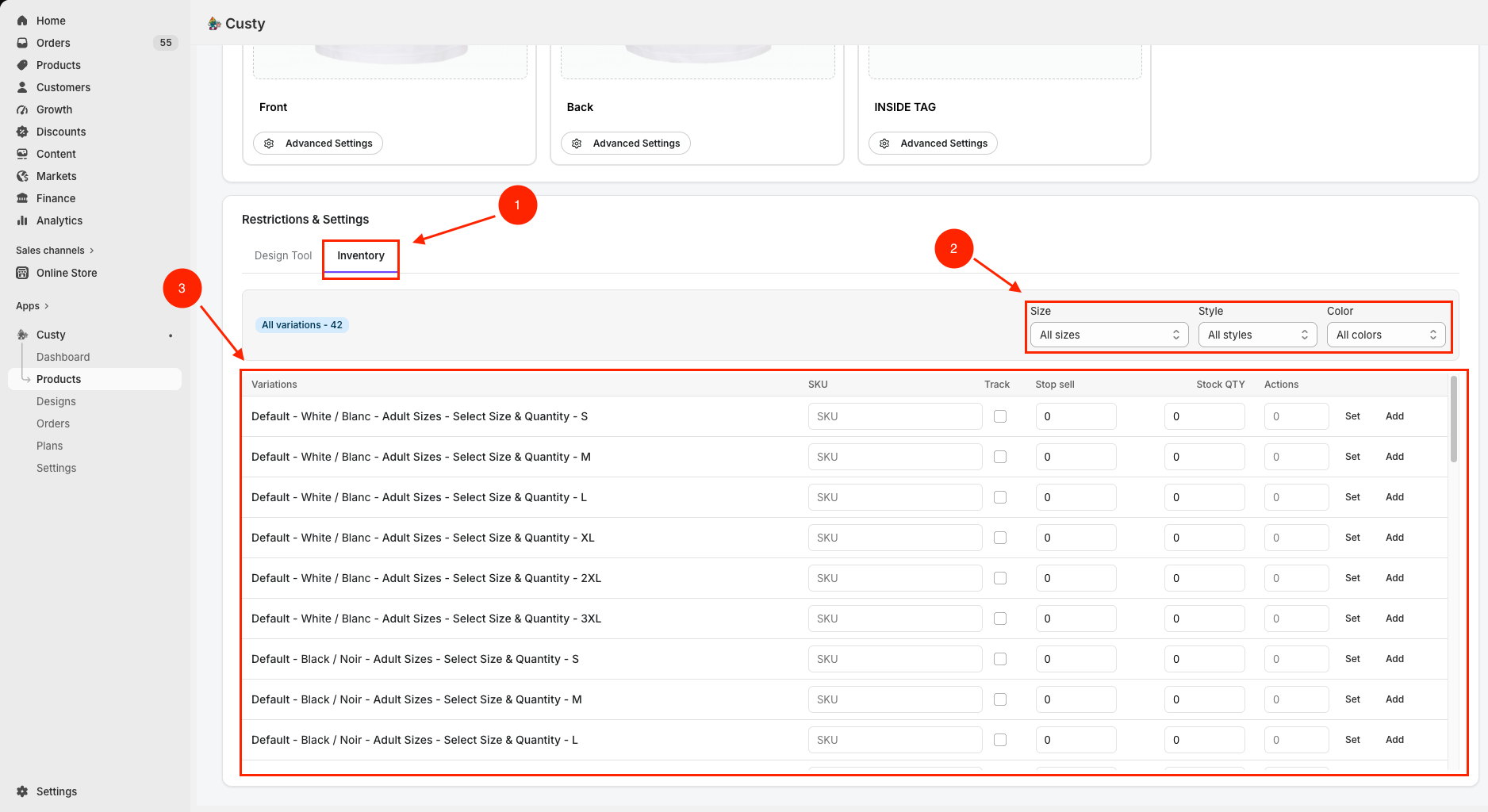 Full size
- 1
Inventory
Tab for stock rules. Needs Starter or Pro. Design Tool is a separate tab.
- 2
Size / Style / Color
Filter the list when you have many variations. Defaults: All sizes, All styles, All colors.
- 3
Variations table
One row per style, color, and size combination. Edit SKU, Track, Stop sell, Stock QTY, then use Set or Add.
Step 3: Filter the variation list (optional)
Use the three filters above the table when the list is long.
- 1Size: narrow to one size (or leave All sizes).
- 2Style: narrow to one style from Upload Images & Styles (or leave All styles).
- 3Color: narrow to one color from the product color set (or leave All colors).
Step 4: Understand each column
Each row is one sellable combination. The Variations label shows style, color, and size together.
- 1SKU: optional code for that variation. Fill it in when you want a per-variation SKU on the order.
- 2Track: turn this on to enforce stock for that row. Leave it off if that variation should stay unlimited.
- 3Stop sell: stock buffer. When Track is on, shoppers can buy until Stock QTY minus Stop sell reaches 0.
- 4Stock QTY: current stock for that variation. Orders reduce this when tracking is on.
- 5Actions: type a number, then click Set (replace stock) or Add (increase stock by that amount).
Step 5: Update stock with Set or Add
In Actions, enter a number first, then click a button.
- Enter the amount in the small number field on the row.
- Click Set to replace Stock QTY with that number.
- Or click Add to increase Stock QTY by that number (for restocks).
- Turn on Track for any row you want Custy to enforce.
- Set Stop sell if you want to keep a buffer (for example stop at 2 units left).
Step 6: Save the product
Inventory saves with the product, same as the rest of Customize Product.
- Click Save at the top of Customize Product.
- Optional: open the Design Lab, pick a tracked color and size, and confirm out-of-stock sizes cannot be ordered.
What to do next
Use the filters when you only need to update certain sizes or colors. Set up size and color lists first if the variation table looks empty or incomplete.