
Upgrade Your Plan
Use this guide when you already have a plan and want a bigger one or a smaller one. You will open Manage plan, then click Upgrade or Downgrade. Changing plans does not delete your products.
If you have not started a paid plan yet and only want the free trial, use the free trial guide instead.
Step 1: Open Manage plan
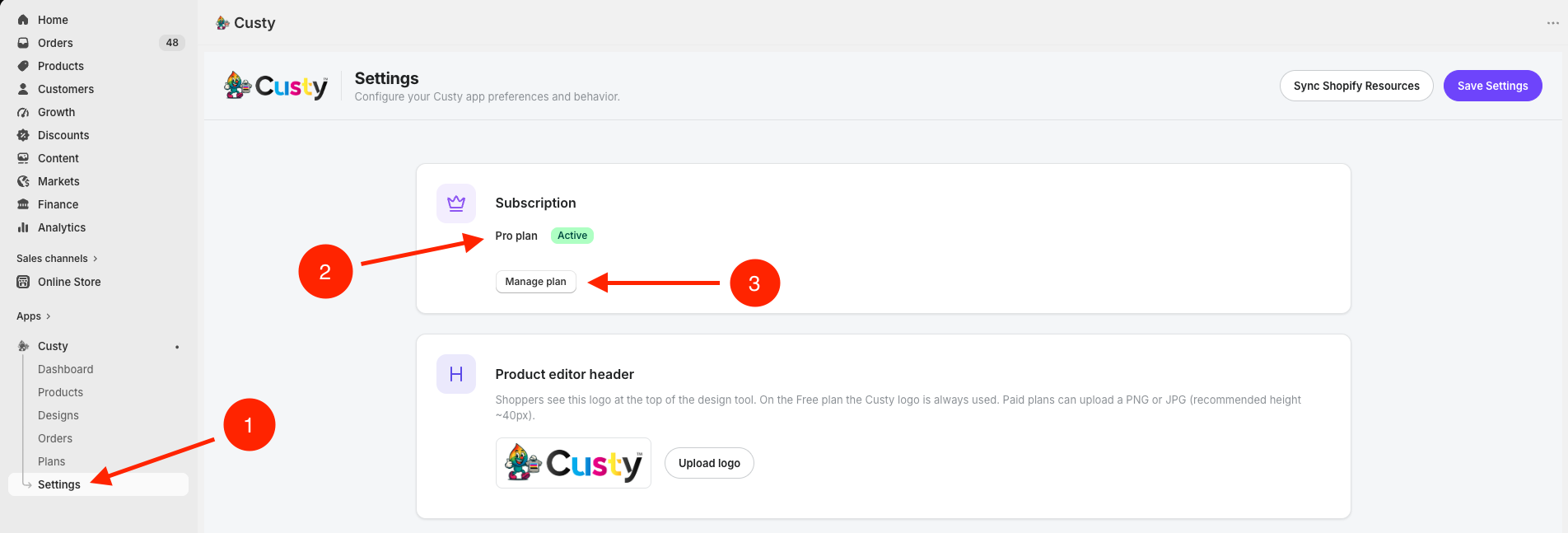
In Custy, click Settings on the left. Find the box that says Subscription. It shows your current plan. Click Manage plan.
You can also click Plans on the left menu. Both take you to the same place.
 Full size
- 1
Settings
Click Settings in the left menu.
- 2
Your plan
This box shows which plan you are on right now.
- 3
Manage plan
Click here to change your plan.
Step 2: Move to a bigger plan (Upgrade)
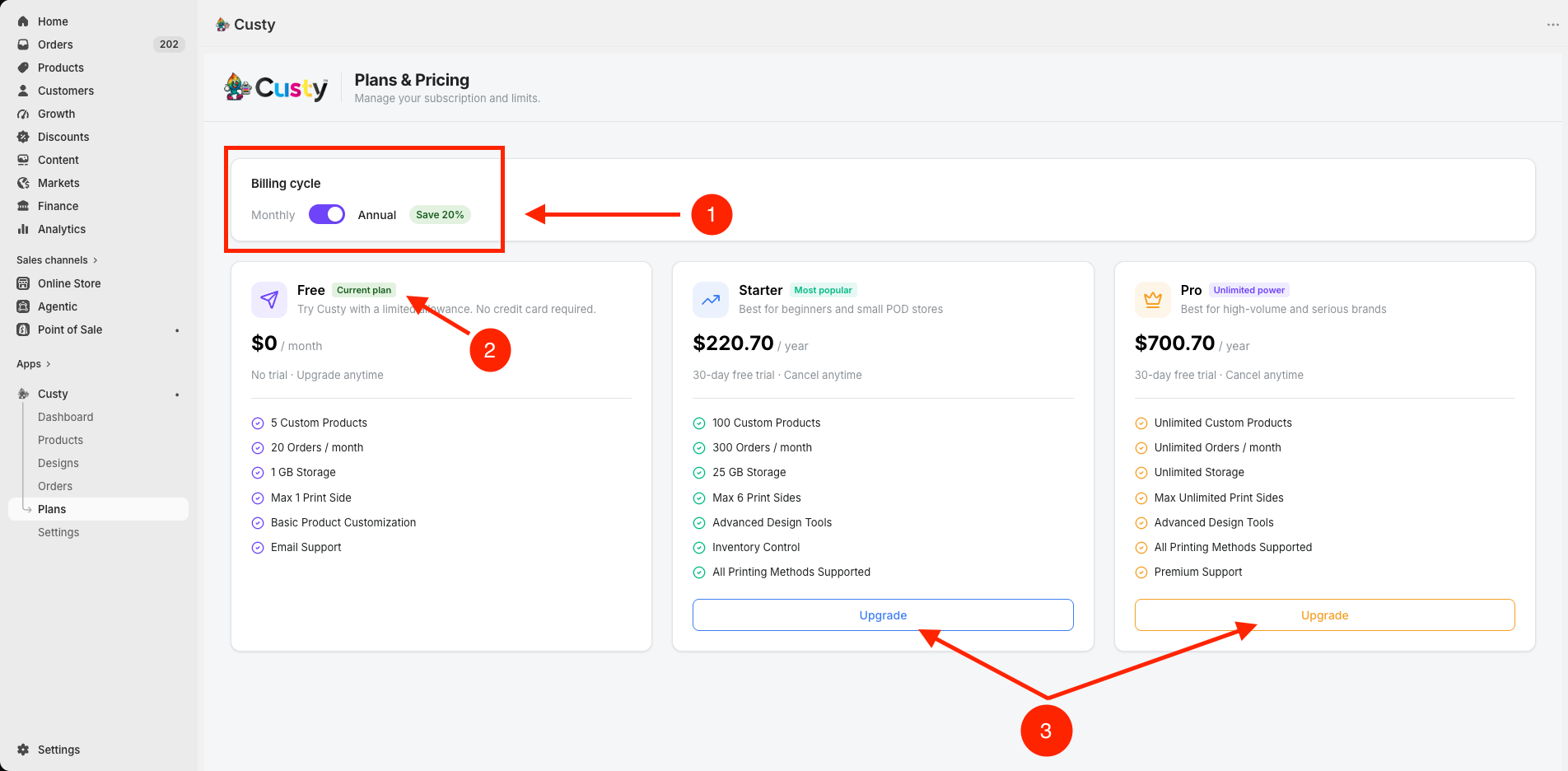
If you are on Free (or a smaller paid plan), the bigger plans show a button that says Upgrade. Your current plan says Current plan and has no change button.
The picture below shows a store on Free. Starter and Pro both say Upgrade. Click the one you want. Then approve the Shopify screen.
- Choose Monthly or Annual (Annual says Save 20%).
- On Starter or Pro, click Upgrade.
- Approve the Shopify confirmation screen.
 Full size
- 1
Monthly or Annual
Pick how often you want to pay. Annual shows Save 20%.
- 2
Current plan
This badge means this is the plan you have now.
- 3
Upgrade
Click Upgrade on the plan you want. Then confirm in Shopify.
Step 3: Move to a smaller plan (Downgrade)
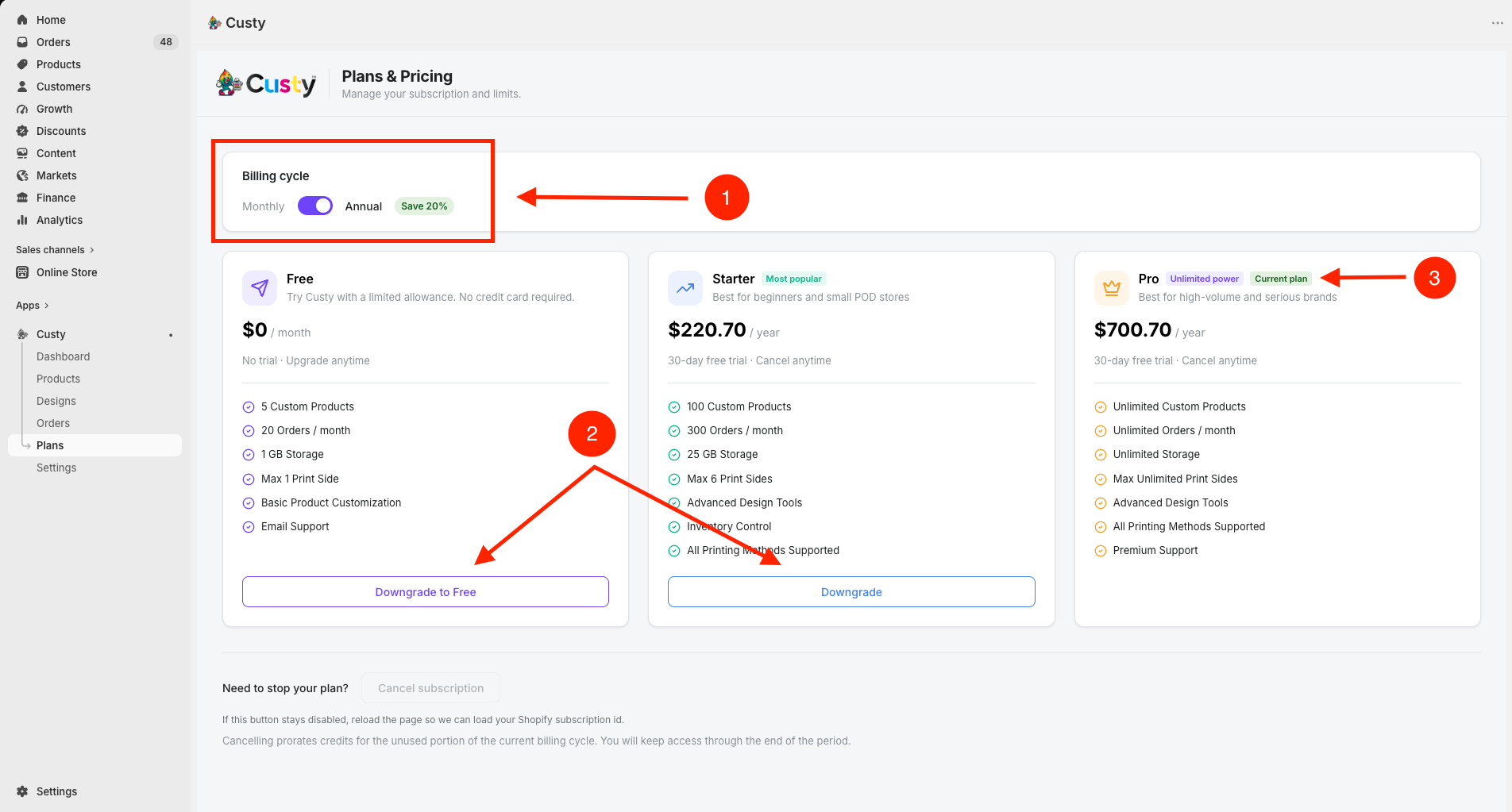
If you are on Pro (or Starter), the smaller plans show Downgrade or Downgrade to Free. Your current plan still says Current plan.
The picture below shows a store on Pro. Free says Downgrade to Free. Starter says Downgrade. Click the one you want. Then confirm in Shopify.
- Change Monthly or Annual if you want to change that too.
- On a smaller plan, click Downgrade or Downgrade to Free.
- Approve the Shopify confirmation screen.
 Full size
- 1
Monthly or Annual
Pick how often you want to pay.
- 2
Downgrade
Smaller plans show Downgrade or Downgrade to Free.
- 3
Current plan
This is the plan you have now. It has no change button.
Step 4: Cancel your plan (only if you want to stop)
At the bottom of the Plans page, look for Need to stop your plan? Click Cancel subscription when the button is ready. If the button is grey and you cannot click it, refresh the page and try again.
If you cancel, you keep using Custy until the end of the time you already paid for. Shopify may give you credit for unused days. Cancelling does not delete your store.
What each monthly plan includes
Monthly and yearly plans have the same features. Here are the monthly prices:
- 1Free ($0 per month): 5 custom products, 20 orders per month, 1 GB storage, 1 print side, basic tools, email support. No trial.
- 2Starter ($22.99 per month): 100 custom products, 300 orders per month, 25 GB storage, up to 6 print sides, more design tools, inventory tools, all printing methods.
- 3Pro ($72.99 per month): Unlimited products, orders, and storage on the published limits, unlimited print sides, premium support, plus Pro extras such as location pricing and white label.
What each yearly plan costs
Click Annual on the Plans page to see yearly prices. The limits are the same as monthly. Free stays $0.
- 1Starter: $220.70 per year (Save 20% compared with paying monthly).
- 2Pro: $700.70 per year (Save 20% compared with paying monthly).
After you change plans
Approve any Shopify screen that pops up. You will land back on Plans with a new Current plan badge. Settings will update too. Check the usage numbers on the dashboard so you stay inside your new limits.
Need help picking a plan?
Email info@CheapestPOD.ca or use Contact in this Help Centre. We will help you choose.