
How to Embed Custy on Your Store?
Your shoppers need a way to open the design screen. That takes two simple turns-on in your Shopify theme. Think of them like light switches. You turn them on and save. You are not rewriting your theme by hand.
You need both. One lets people reopen a design from the cart. The other puts the Customize It button on the product page.
Step 1: Turn on Custy cart editor
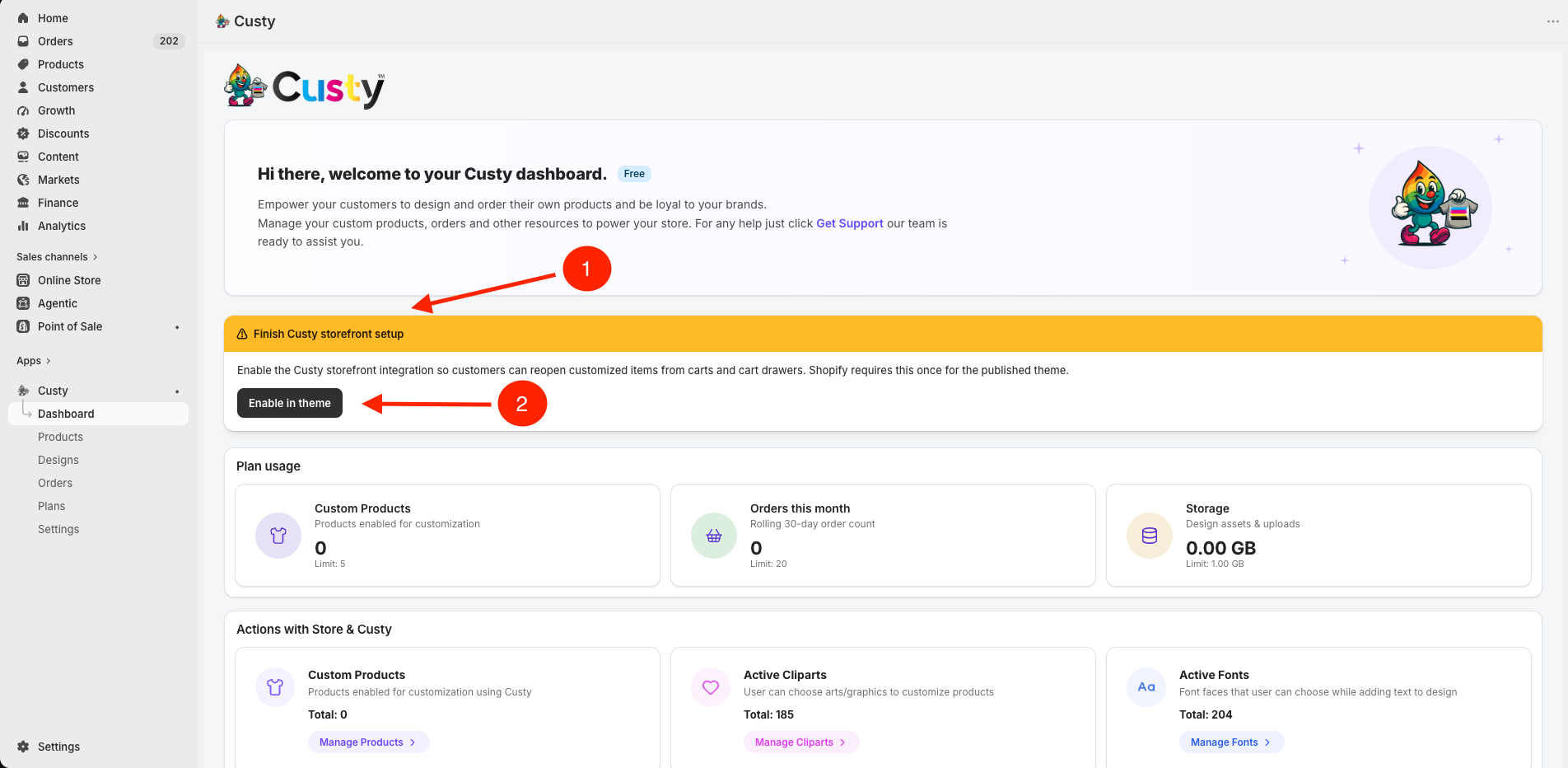
This switch lets a shopper open their design again from the cart. If it is off, Custy shows a banner that says Finish Custy storefront setup with a button Enable in theme.
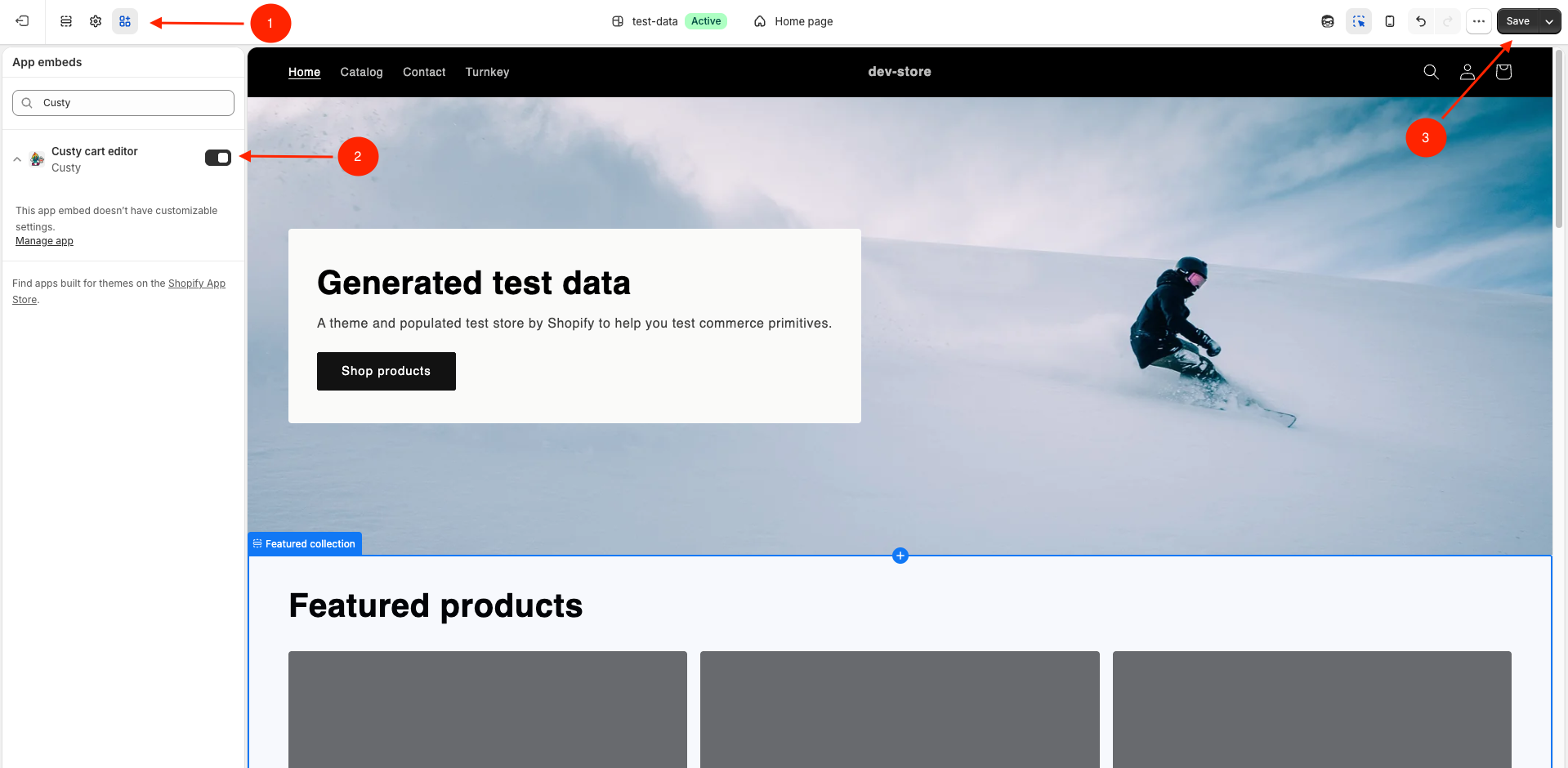
- Click Enable in theme on the banner, or open your theme editor yourself.
- Click the App embeds icon (the four squares).
- Find Custy cart editor and turn it on.
- Click Save.
 Full size
- 1
App embeds
Click this icon to open App embeds.
- 2
On / Off
Turn on Custy cart editor.
- 3
Save
Click Save.
If you see a reminder banner
If the switch is still off, the Custy home screen keeps showing Finish Custy storefront setup until you turn it on. That is a helpful reminder, not an error.
 Full size
- 1
Finish Custy storefront setup
This banner means the cart editor switch is still off.
- 2
Enable in theme
Click here to open the theme editor and turn the switch on.
Step 2: Add the Customize It button
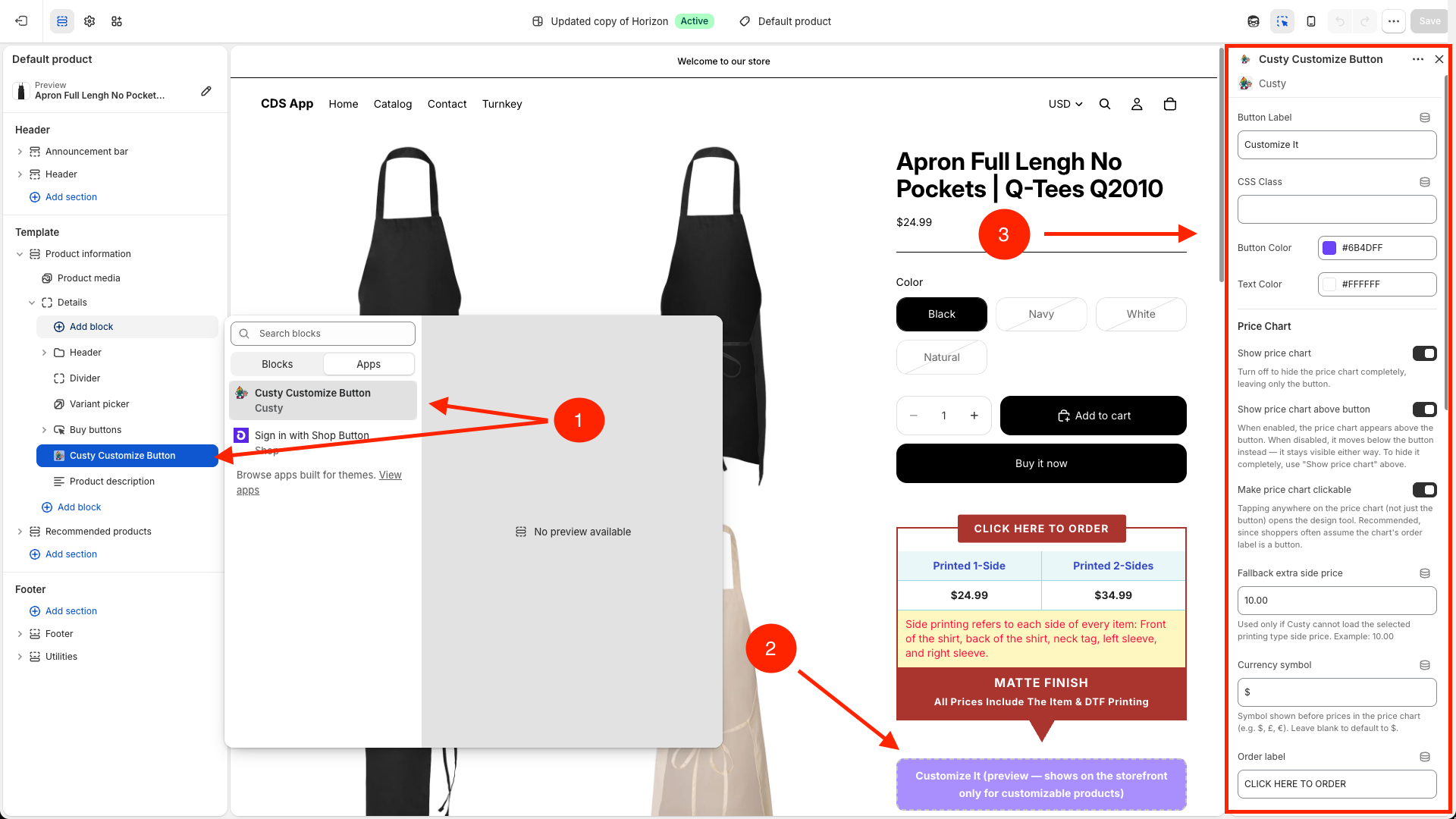
On your product page template, add the block called Custy Customize Button. Shoppers will see a button that says Customize It. You can change the words and colors later if you want.
- In the theme editor, open the product page template your shoppers use.
- Click Add block and choose Custy Customize Button.
- Put it where shoppers will notice it (near Add to cart is a good spot), then click Save.
- Optional: change the button text, colors, price chart, or hide Add to cart while people design.
 Full size
- 1
Custy Customize Button
Add this block on the product page.
- 2
Customize It
This is the button shoppers click. The default words are Customize It.
- 3
Button settings
Change the words, colors, and extra options here if you want.
Step 3: Check your live store
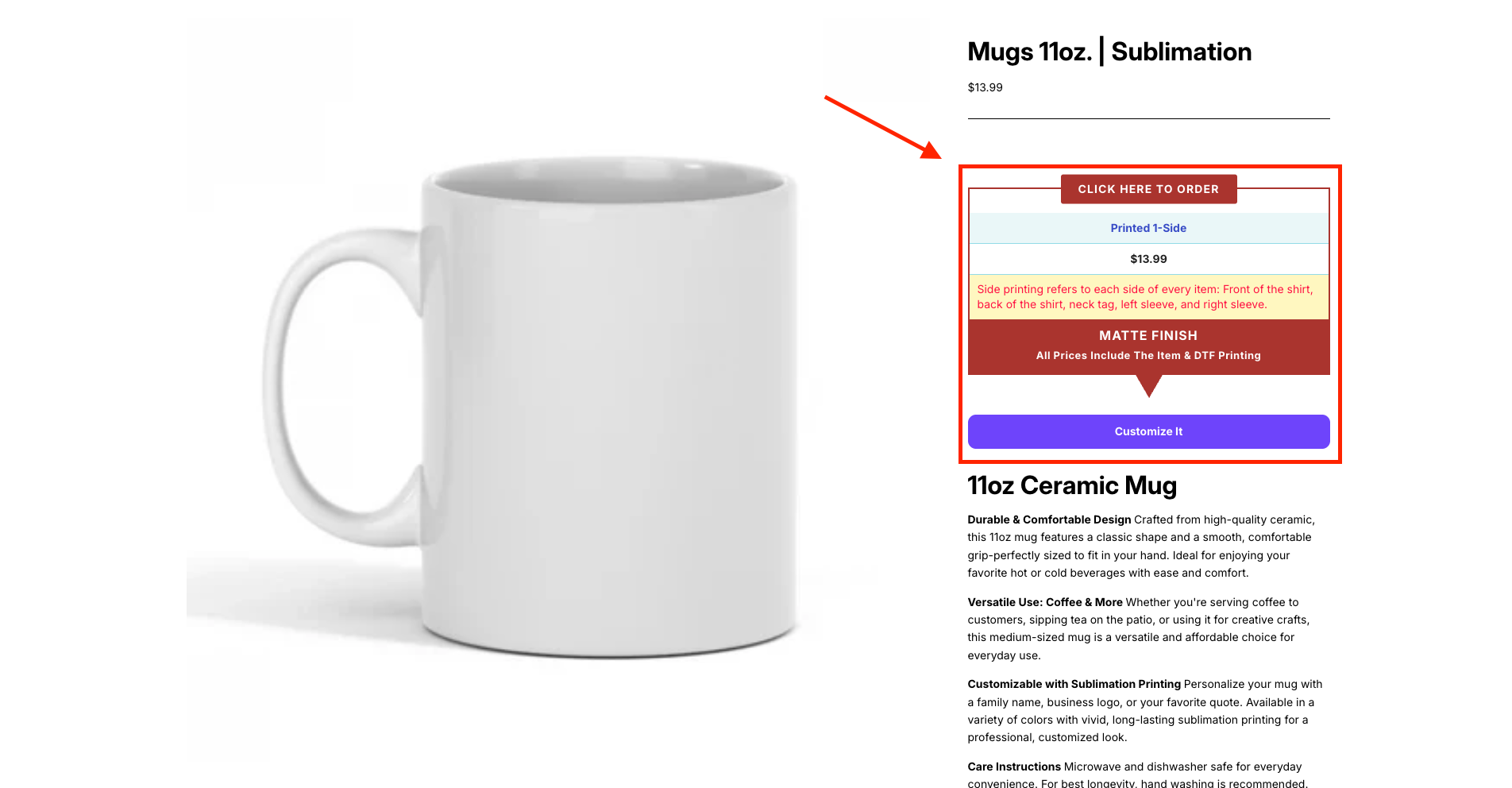
After you have at least one custom product with Active on designer set to Yes, open that product on your live store. You should see Customize It. Click it. The design screen should open.
- Open the product on your store (or use View in store from Custy).
- Click Customize It and check that the right product opens.
If the design page is missing
Open Settings in Custy and click Sync Shopify Resources. That rebuilds the design page for you. It is safe to click.
 Full size
- 1
Customize It
This button opens the design screen for that product.