
How to Manage Inventory with Product Size?
When a product has a size set, Custy builds inventory rows for every size combined with your colors and styles. You can filter those rows by size and update stock one size at a time.
Set up the size set on the product first. Inventory needs Starter or Pro.
Step 1: Open Inventory on the product
In Custy, open Products, click Edit on the customizable product, then scroll to Restrictions & Settings and click Inventory.
- Confirm the product has a Size Set under Product Sizes (not No Size Set).
- Open Restrictions & Settings → Inventory.
Step 2: Filter by Size
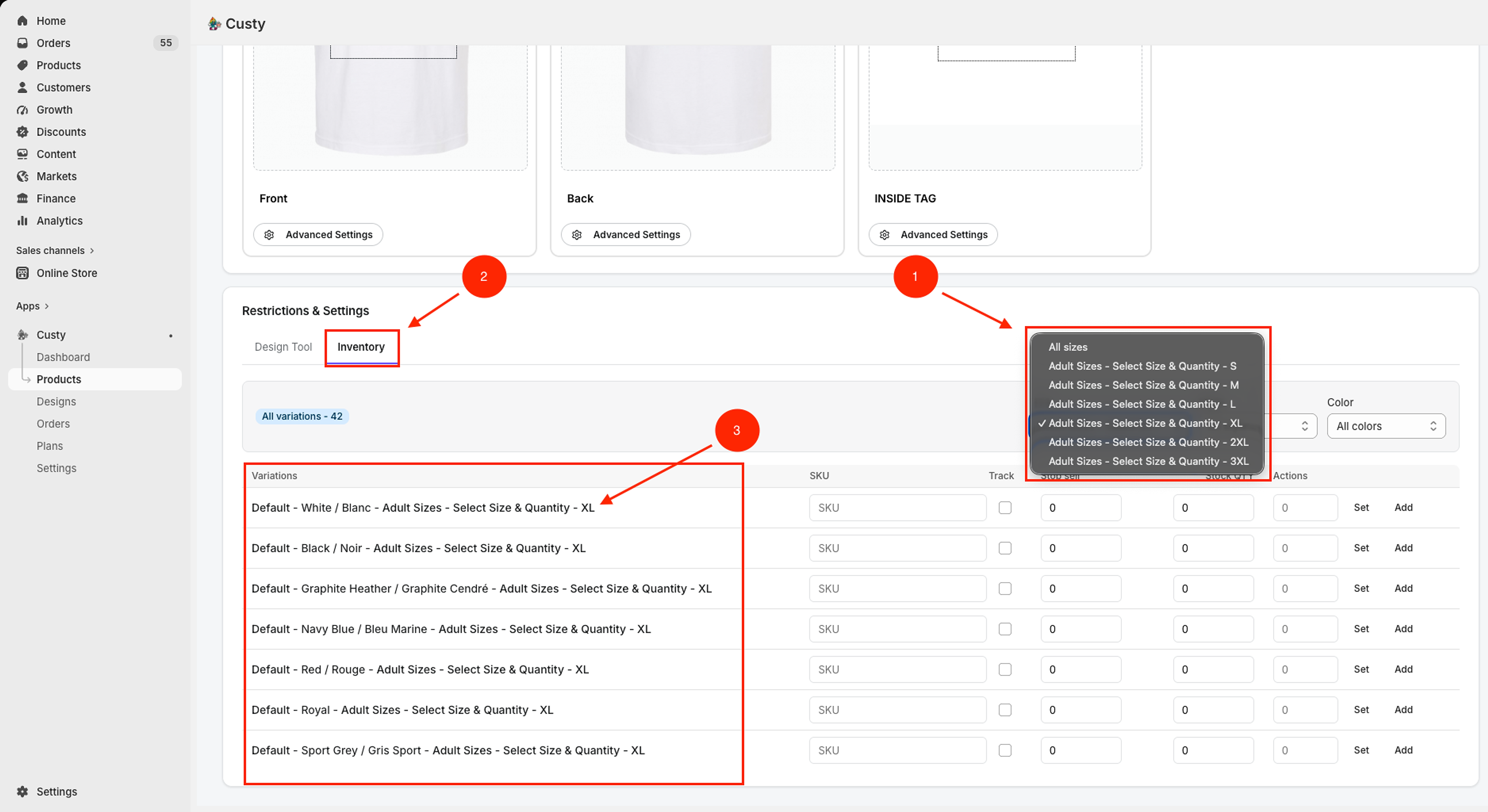
Above the table, open the Size dropdown. Pick one size to focus the list (for example Adult Sizes - Select Size & Quantity - XL), or leave All sizes to see every size.
What you will see
Variation names include the size set path and size title (for example Adult Sizes - Select Size & Quantity - XL). That is the size you are stocking.
 Full size
- 1
Size filter
Choose one size (for example XL), or keep All sizes. The list shows every size from the product size set.
- 2
Inventory
Stay on this tab under Restrictions & Settings. Stock settings live here.
- 3
Variations
After you filter, every row ends with that size (for example XL) across your colors. Update those rows.
Step 3: Update stock for those sizes
For each visible size row, set SKU if you need one, turn on Track, set Stop sell and Stock QTY, or use Set / Add in Actions.
- Turn on Track for sizes you want to limit.
- Enter stock with Stock QTY, or type a number and click Set or Add.
- Click Save at the top of Customize Product.
What to do next
Filter by color the same way when you restock one color across all sizes. Keep your size set up to date so new sizes appear in Inventory automatically.