
How to Add Extra Price for Colors?
While you create or edit a color set, you can add an extra amount on specific colors. That amount sits on top of the product base price when a shopper picks that color in the Design Lab.
For example, if the product is $20 and Red has Price ($) set to 2.00, the shopper pays $22 for that color (plus any printing fees and size extras).
What this extra price does
Custy stores the extra as Price ($) on each color in a color set. Leave it at 0.00 for colors that should stay at the base product price.
- 1The extra is per color, not per printing method. Printing color fees live under Printing Types & Pricing.
- 2The same color set can be reused on many products. Changing Price ($) updates every product that uses that set.
Step 1: Open the product
In Custy, click Products on the left. Find the customizable product and click Edit. If it is still a standard Shopify product, click Make it customizable first.
- Open Products.
- Click Edit on the product you want to price.
Step 2: Open Product Colors
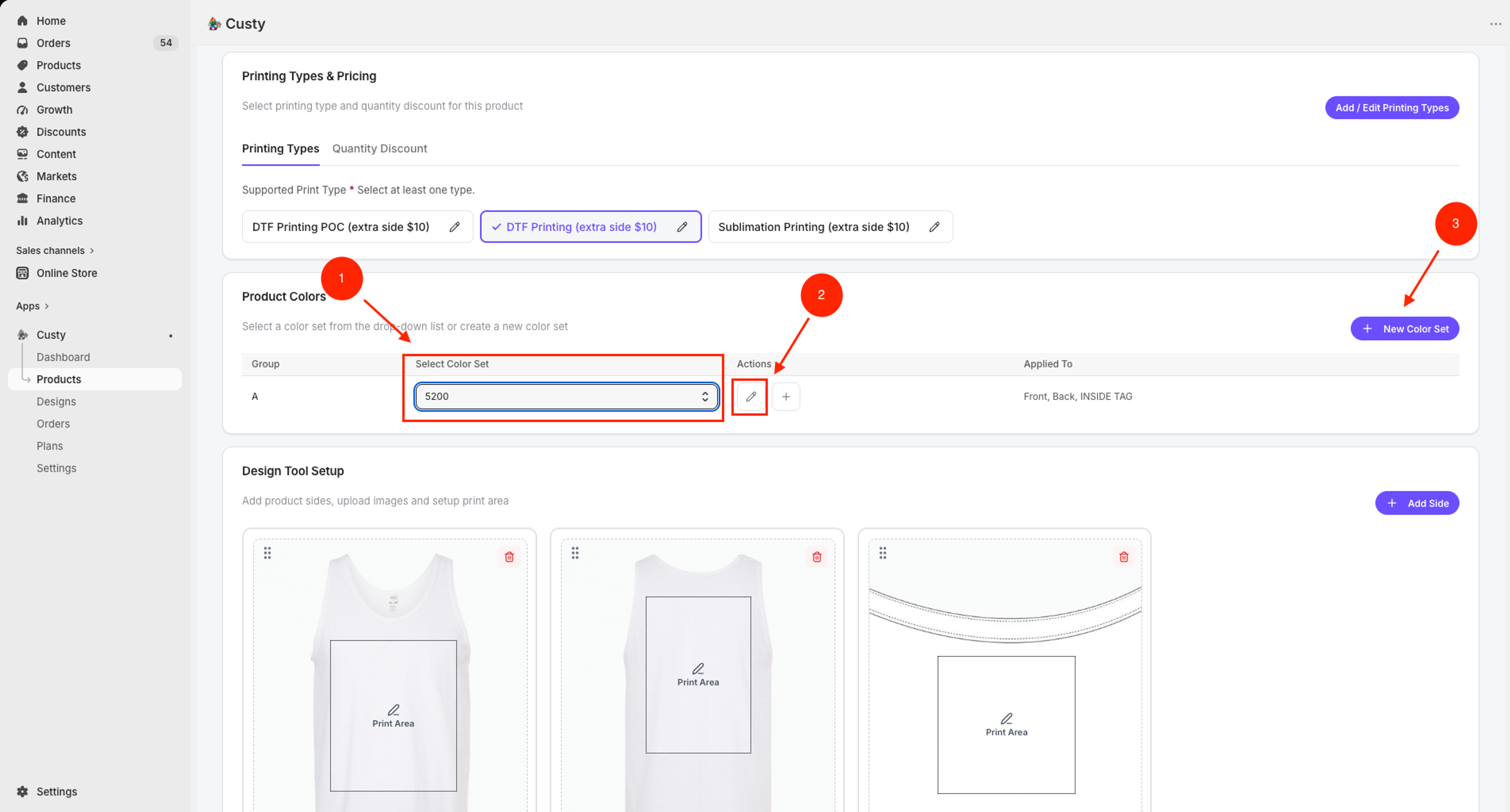
On Customize Product, scroll to Product Colors. You should see the color set already assigned.
- Confirm Select Color Set shows your custom set (not empty, and not Full Color Set if you need to change prices).
- Click the pencil (Edit color set) next to the dropdown. Or click New Color Set if you still need to create one.
Another way in
You can also open Products → Create Colors, then Edit the set. The Price ($) field is the same.
 Full size
- 1
Select Color Set
The set this product uses. Extra prices live inside this set.
- 2
Edit (pencil)
Opens Edit Color Set. Disabled on Full Color Set.
- 3
New Color Set
Create a custom set if you do not have one yet.
Step 3: Set Price ($) for each color
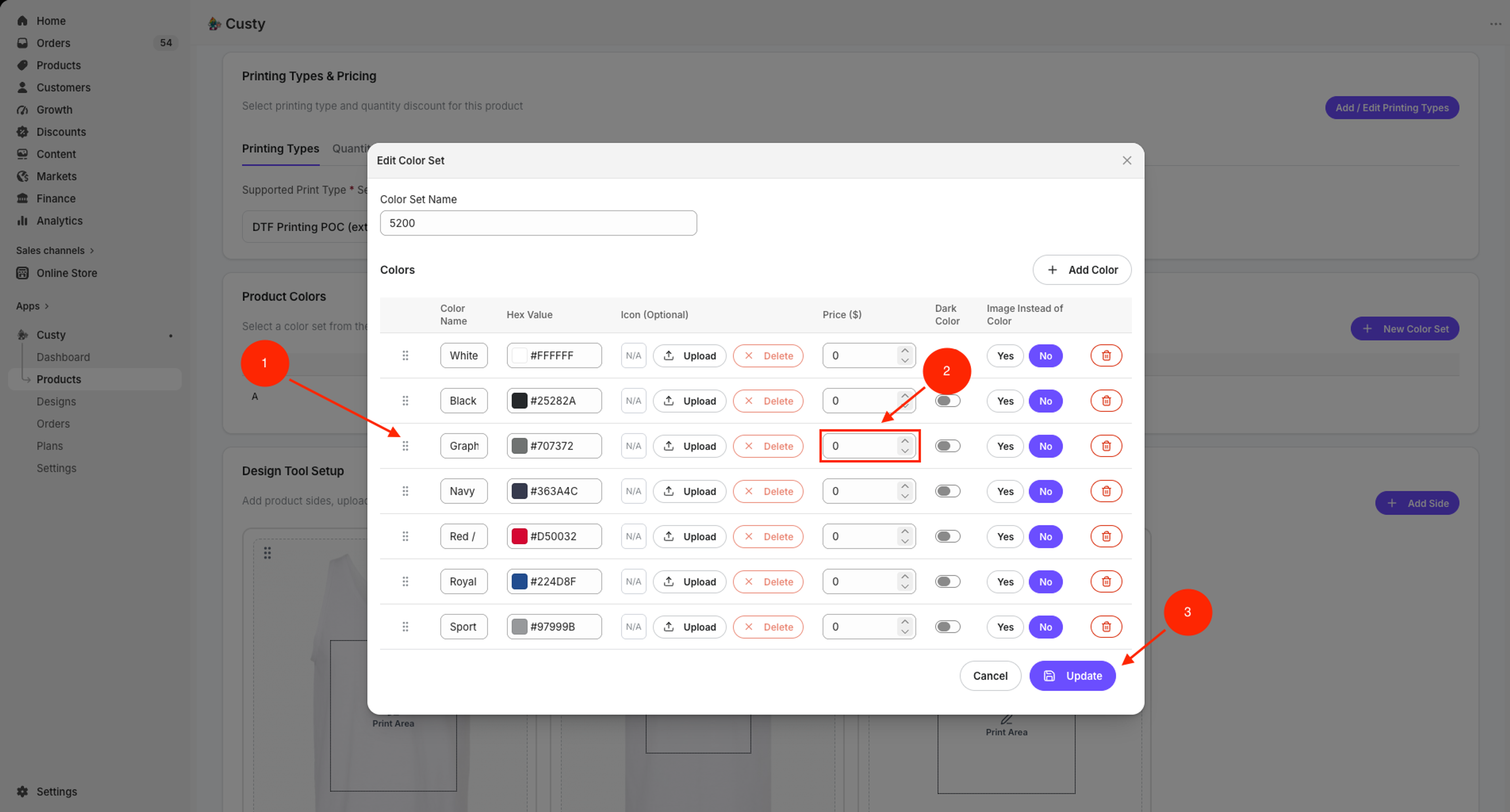
The Edit Color Set (or Create Color Set) window lists every color. Find Price ($) on the row.
- Enter the extra amount for colors that should cost more (for example 2.00). This is added on top of the product base price.
- Leave 0.00 on colors with no extra charge.
- You can use a different amount on each color.
- Click Update if you are editing, or Save if you are creating the set.
 Full size
- 1
Color row
The color shoppers will pick (for example Graphite).
- 2
Price ($)
Extra on top of the product base price. Use 0.00 if there is no add-on.
- 3
Update
Stores the prices on the color set. On a new set, this button says Save.
Step 4: Check the shopper price
After you save the color set, the extra is included in the Design Lab price when a shopper selects that color. It is not a printing-type fee. It is a product-color add-on.
- On Customize Product, set Active on designer to Yes and click Save if you have not already.
- Open Design Panel or the live Customize It button, pick the premium color, and confirm the total includes the extra.
What to do next
If larger sizes also cost more, set Extra Price ($) on those sizes. Prepare product photos next if you still need grayscale or per-color images. Then finish print areas and printing fees if needed.