
Manage and Download Custom Orders
When someone buys a Custy custom product, you download their design from Orders in the Custy app. The ZIP includes print files for each side, plus product and design details.
You can also jump into Custy from a Shopify order page when the admin shortcut is available. The download settings live on the Custy order detail screen.
What you get when you download
Each download is built for production. A typical ZIP includes:
- 1Design files for every printed side
- 2Product preview images
- 3Product details such as color, size, quantity, and options
- 4Customer-uploaded images or logos used in the design
- 5Design details (text, fonts, cliparts, positions) and any customer comments
Formats and DPI
Vector: SVG or PDF. Raster: PNG or JPG. DPI options: 72, 96, 150, or 300. Pick a transparent or colored background before you download.
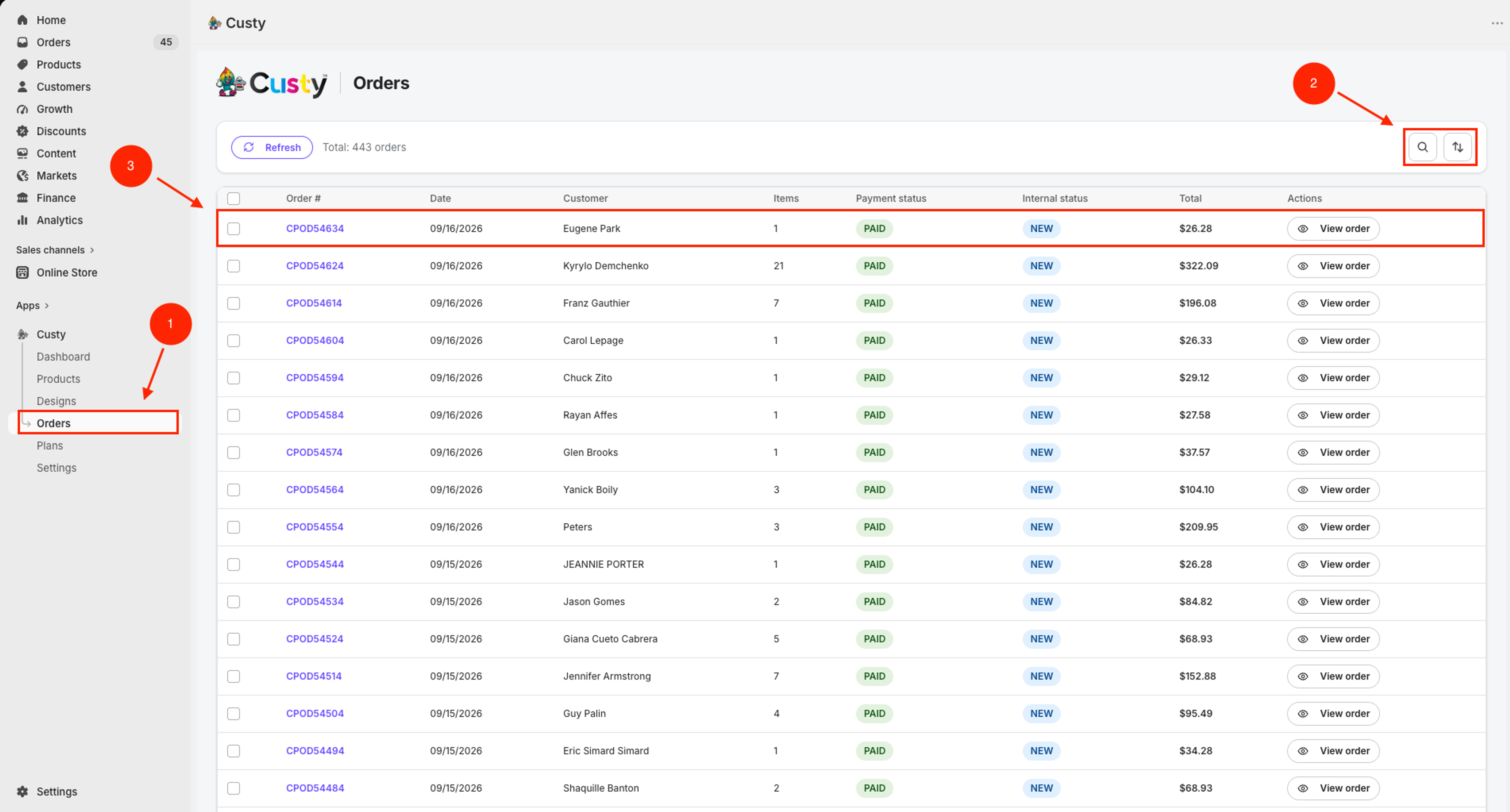
Step 1: Open Orders in Custy
In Shopify Admin, open the Custy app. Click Orders on the left.
- Open the Custy app from Shopify Admin.
- Click Orders.
- Optional: use Search to find an order.
- Click View order on the row you need.
 Full size
- 1
Orders
Opens your custom order list.
- 2
Search
Find an order by number, date, or other filters.
- 3
View order
Open that order to review the design and download files.
Step 2: Open the order and download files
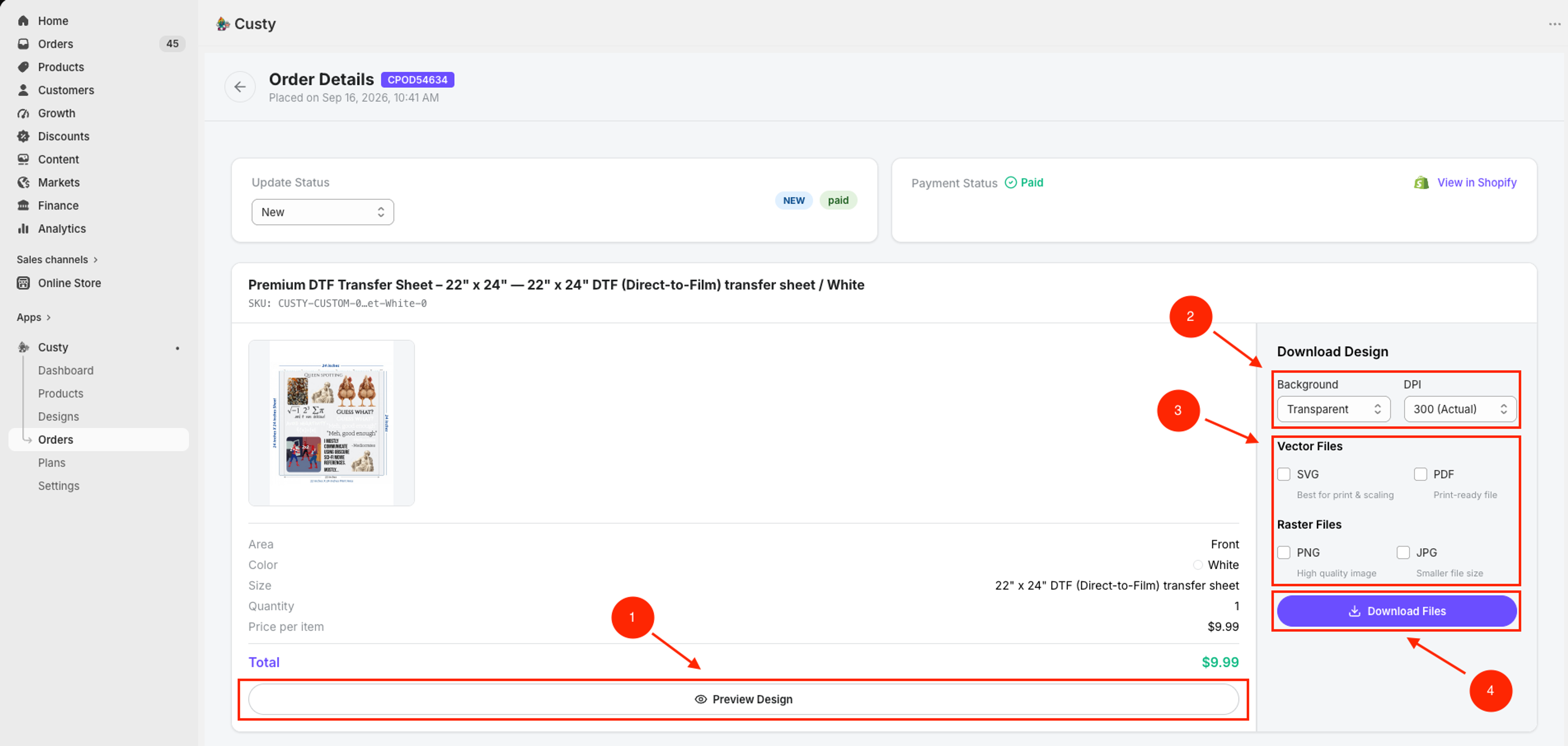
Click View order. On Order Details you see the product, size, color, quantity, and the Download Design panel.
- Click View order on the row you want.
- Optional: click Preview Design to review the artwork.
- Under Download Design, pick Background (Transparent or colored) and DPI.
- Tick the Vector Files you need (SVG, PDF) and the Raster Files you need (PNG, JPG).
- Click Download Files. Save the ZIP and send it to production.
Low DPI warning
If artwork is below the required DPI you set in Settings, Custy may flag it. Fix the design or accept the risk before you print.
 Full size
- 1
Preview Design
Open a preview of the shopper design.
- 2
Background and DPI
Transparent or colored background, then DPI such as 72, 96, 150, or 300.
- 3
Vector Files and Raster Files
SVG or PDF for vector. PNG or JPG for raster.
- 4
Download Files
Downloads a ZIP with print files and order details.
Step 3: Update order status
After you download (or finish the job), set the internal status so your team can see progress.
- Open Update Status.
- Pick a status such as New, Downloaded, Partially Downloaded, Need Fixing, Completed, or Canceled.
- On Pro, you can select several orders and change status in bulk.
What to do next
If shoppers need clearer designs before checkout, review Design Lab warnings and your first product setup.