
How to Restrict Minimum and Maximum Order Quantity?
Some print methods need a minimum order (for example 12 pieces). Some also need a maximum. In Custy you set that on the printing type, on the Restrictions tab.
When a shopper tries to add to cart, Custy checks the total quantity for that printing type. The total can include more than one size. Changing this does not delete your products.
Step 1: Open the Restrictions tab
Click Products, then Printing Types & Pricing. Click Add Printing Type, or click Edit on a type you already have. Click the Restrictions tab.
- Open Products, then Printing Types & Pricing.
- Click Add Printing Type or Edit.
- Click Restrictions.
From a product
You can also open this from Customize Product, then Printing Types & Pricing, then Add / Edit Printing Types, then click Restrictions.
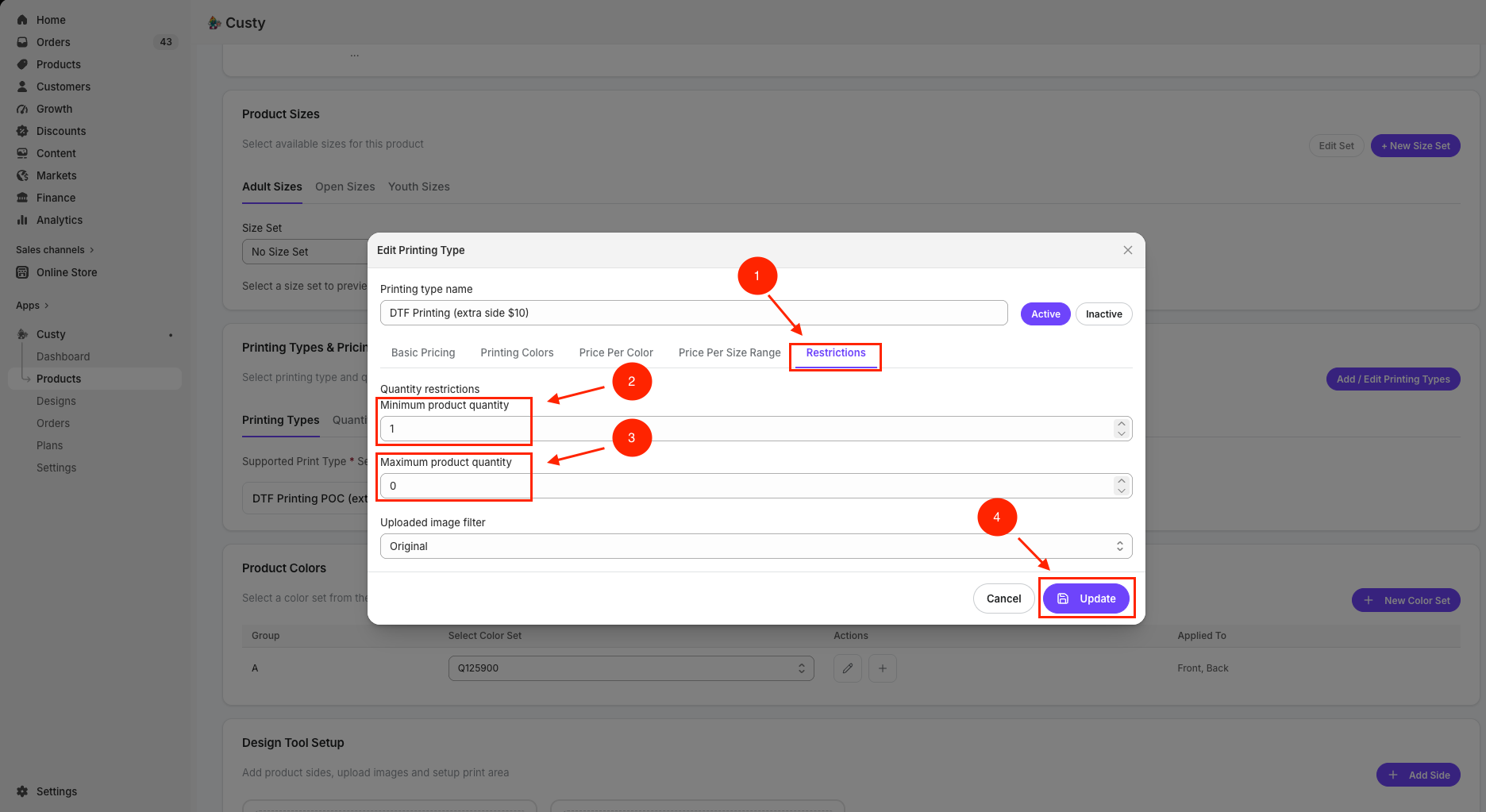 Full size
- 1
Restrictions
This tab holds quantity limits and the uploaded image filter.
- 2
Minimum product quantity
Shoppers must order at least this many pieces for this printing type.
- 3
Maximum product quantity
Shoppers cannot order more than this. Use 0 for no upper limit.
- 4
Save or Update
Click Save (new type) or Update (editing) at the bottom.
Step 2: Set minimum and maximum
Under Quantity restrictions, fill in the boxes that match how you sell.
- Type a Minimum product quantity if you have a minimum (for example 12). Use 0 if you do not need a minimum.
- Type a Maximum product quantity if you have a maximum (for example 50). Use 0 if there is no upper limit.
Step 3: Save or Update
Click Save if this is a new printing type. Click Update if you are editing one. Products that use this type pick up the new limits.
- Click Save or Update at the bottom of the window.
What to do next
If you want uploaded pictures to get a fixed look (for example Grayscale), set Uploaded image filter on the same tab.